Geofence Distance Calculator
Check straight-line distance between two coordinates and see if a target is inside, on, or outside a geofence radius.
Check Geofence Range with Confidence
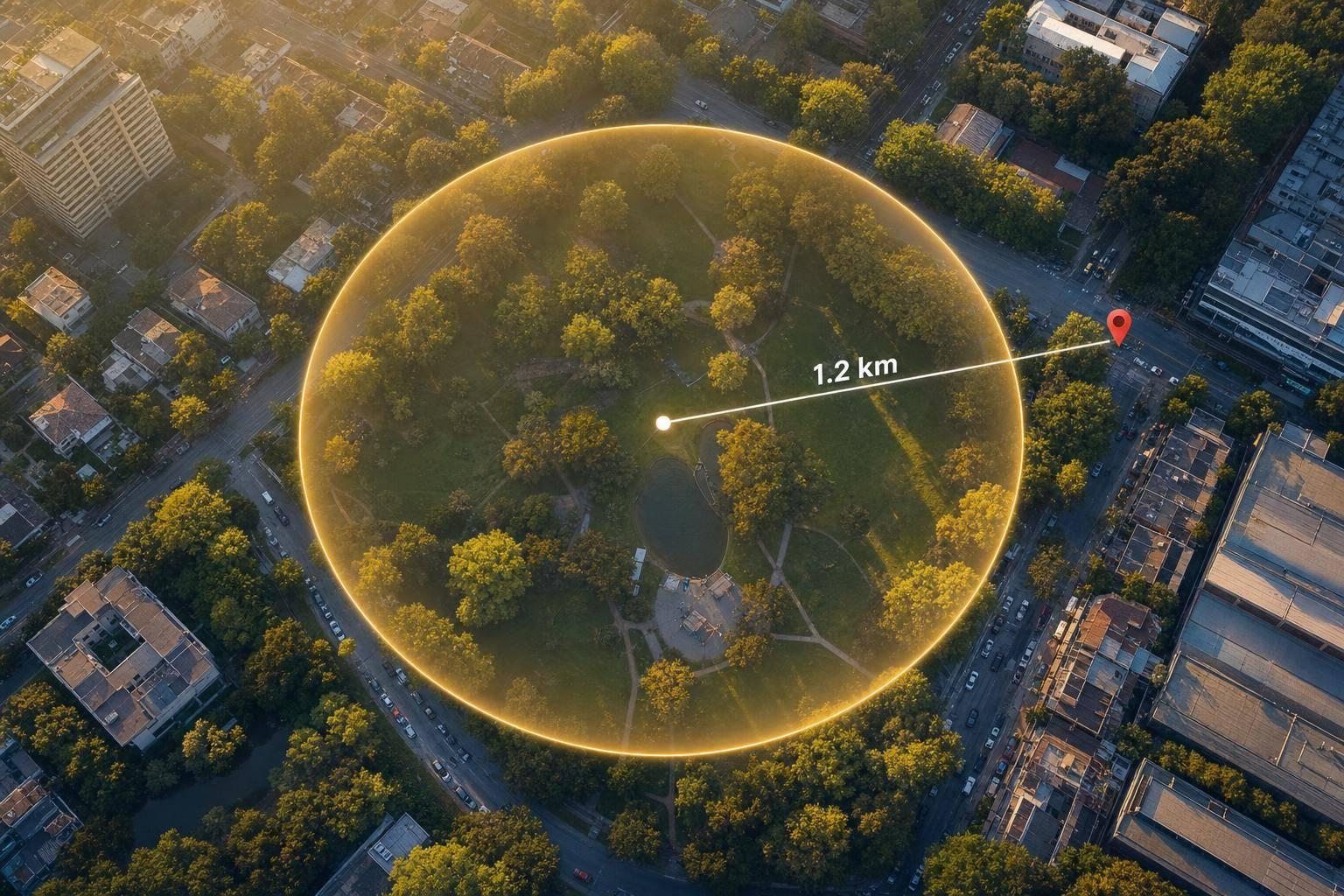
A Geofence Distance Calculator helps you measure the straight-line distance between a centre point and a target location using latitude and longitude. It's a practical way to test whether a point falls within a defined radius, especially when you want a quick answer without opening mapping software.
Why this tool is useful
If you're working with delivery zones, location alerts, fleet tracking, or simple coordinate checks, accuracy matters. This calculator validates your inputs, applies the Haversine formula, and returns a clean result in multiple units. That means you can check the separation in metres, kilometres, miles, or feet and immediately see whether the target is inside, on the edge of, or outside the boundary.
Built for fast coordinate checks
The layout is simple: enter the centre coordinates, add the target coordinates, choose the geofence radius, and review the result. A reliable geofence distance calculator is especially helpful when you're testing radius rules, verifying GPS points, or troubleshooting location-based systems. Because the tool also shows how far a point sits inside or outside the limit, it gives a bit more context than a basic coordinate distance checker.
FAQs
How does this geofence distance calculator work?
It compares two sets of coordinates: the geofence centre and the target location. The tool uses the Haversine formula, which is a standard way to calculate great-circle distance between points on the Earth's surface. After that, it converts the result into metres, kilometres, miles, and feet, then checks whether the target falls within your chosen radius.
What does 'on boundary' mean in the result?
'On boundary' means the calculated distance is effectively the same as the geofence radius, allowing for a very small tolerance to account for floating point rounding. In real-world terms, the target sits right on the edge of the geofence rather than clearly inside or outside it.
Can I use different units for the radius and output distance?
Yes. You can enter the geofence radius in metres, kilometres, miles, or feet. The calculator then shows the measured distance in all supported units, so it's easy to compare values without doing manual conversions.