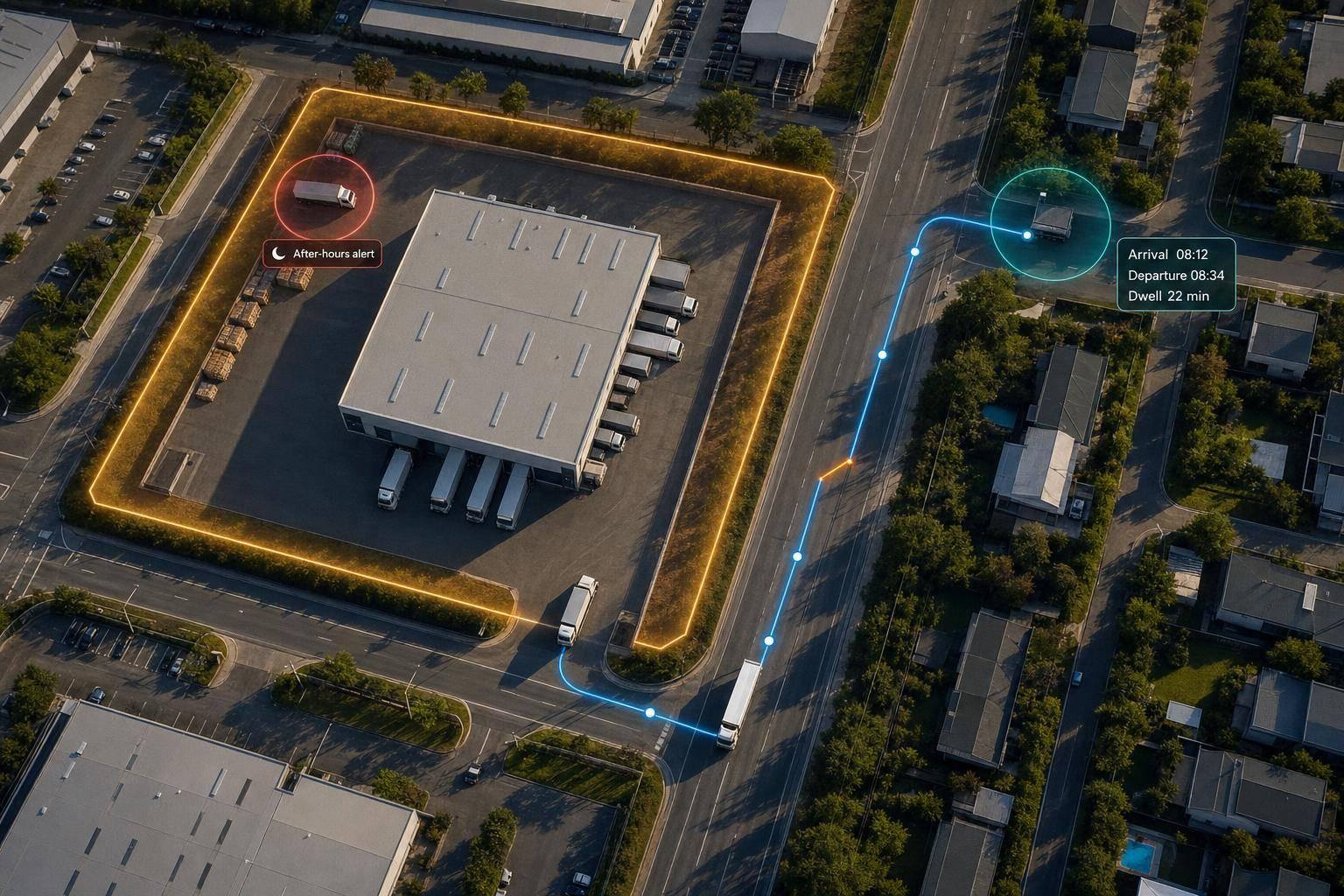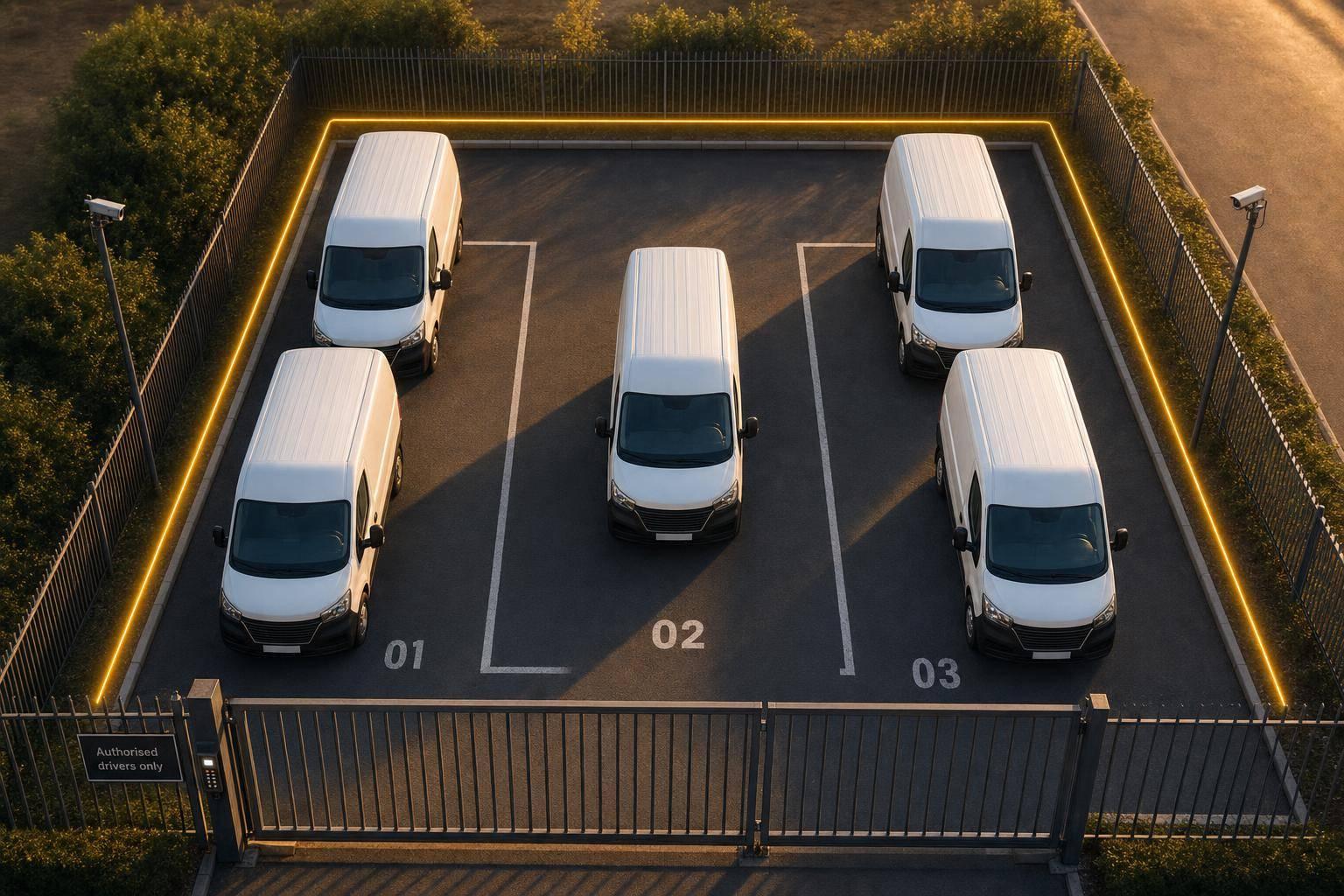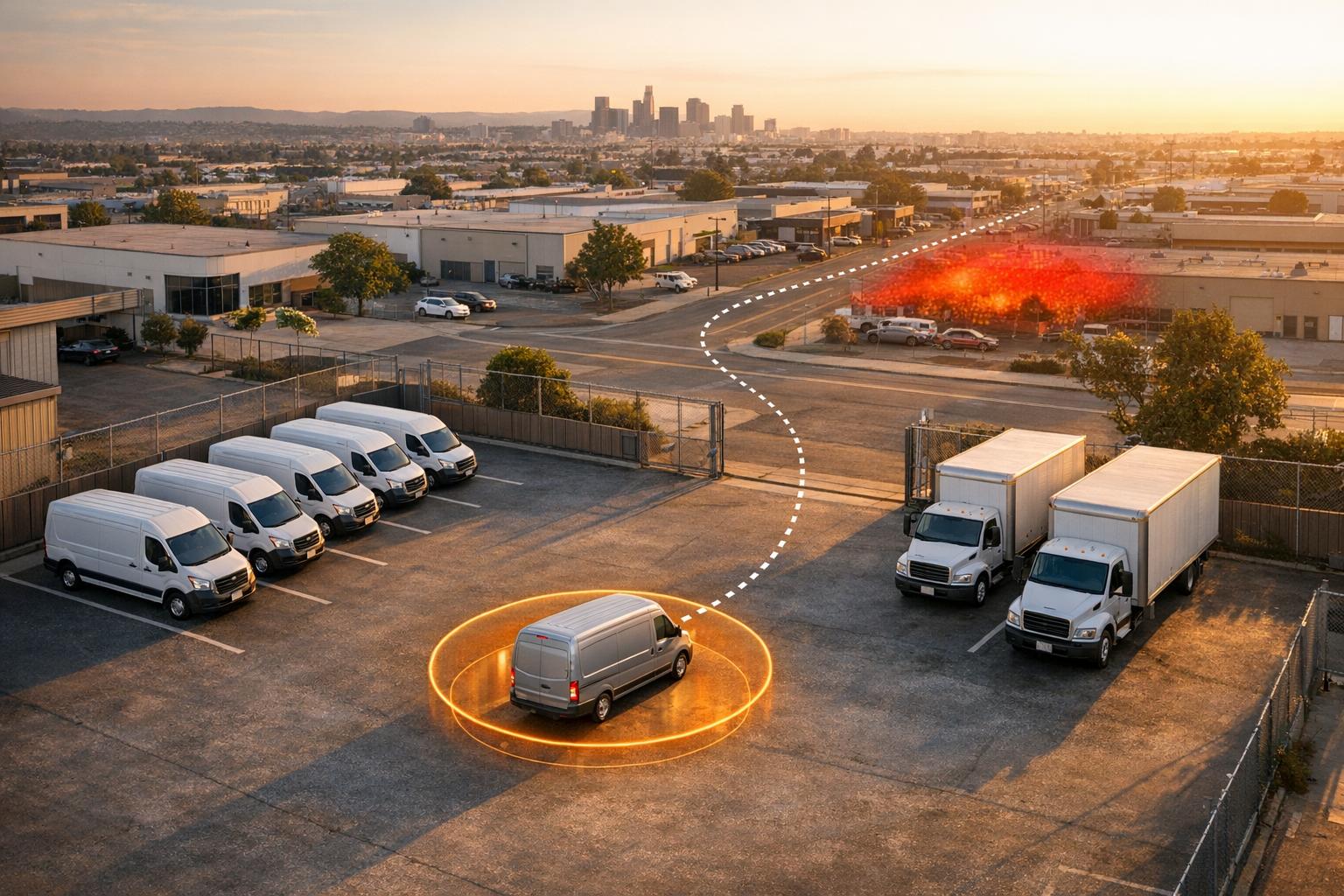
How Geofencing Solves Out-of-Hours Van Use
Use geofences, curfews and timestamped logs to detect and investigate out-of-hours van movement, reduce misuse and prove incidents.
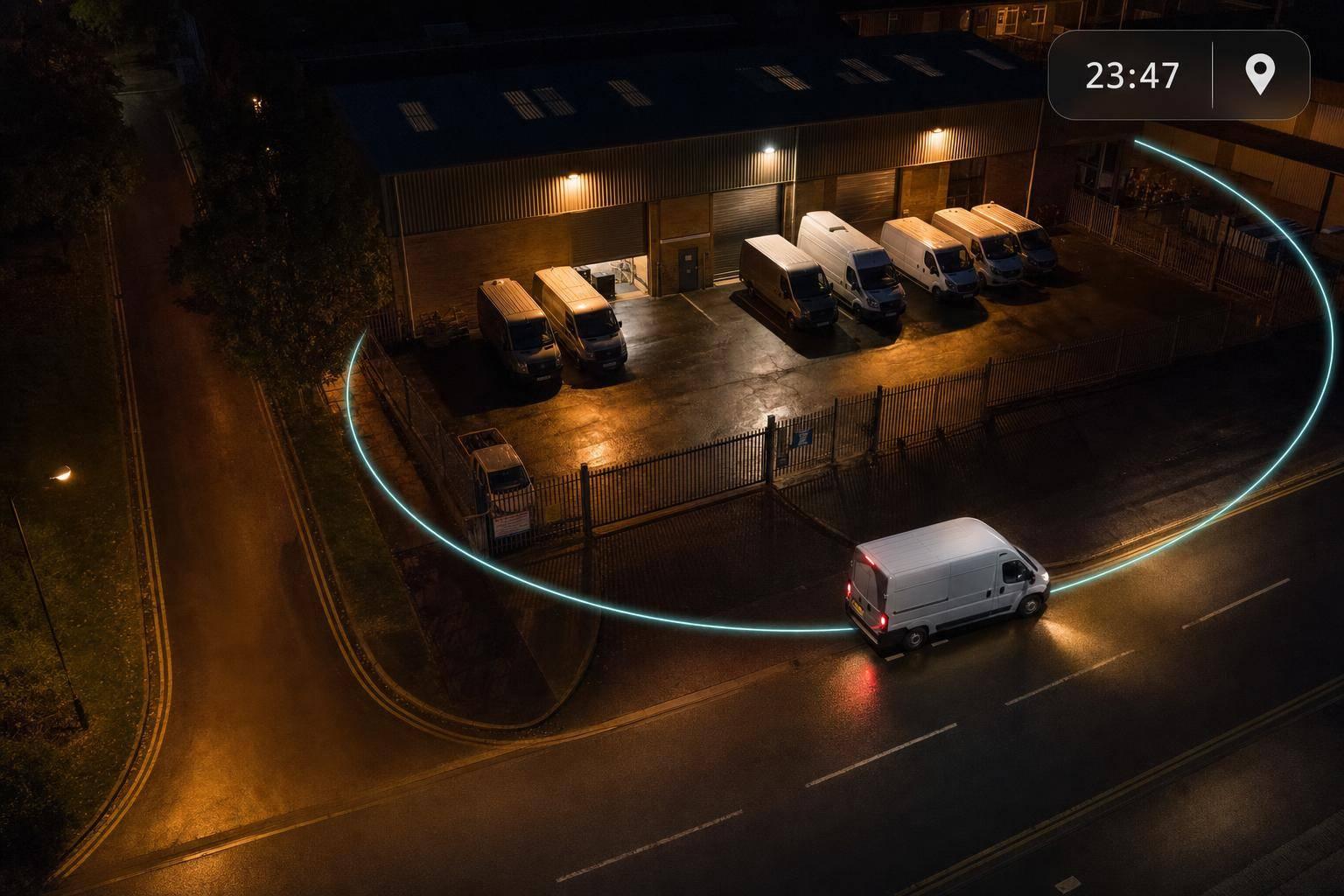
Out-of-hours van use costs money, adds risk, and is often only spotted after the trip has happened. I’d sum up the fix in three steps: put geofences around the places that matter, set clear curfew and home-parking rules, and use timestamped logs to check each alert against rotas and call-out records.
If I were explaining it simply, this is the whole article in one view:
- What counts as out-of-hours use: any ignition event or vehicle movement outside approved work hours, such as evenings, weekends, or UK bank holidays
- How geofencing helps: it uses virtual boundaries around depots, homes, and job sites to flag movement as it happens
- Where to place geofences: depots, driver home addresses, customer sites, and high-risk locations
- How to cut false alerts: use the right fence shape and allow for GPS drift, which is often around 4.9 metres (16 feet)
- What rules to set: night curfews, weekend blocks, bank-holiday checks, return-by times, and do-not-leave-before times
- Who should get alerts: on-call managers first, then fleet managers or HR if the issue carries on or keeps happening
- What to review after an alert: vehicle registration, geofence name, timestamp, dwell time, ignition status, route, and driver record
- Why it matters: extra mileage, wear, theft risk, insurance disputes, and health and safety scrutiny after a crash
A few figures stand out. Home-location geofences are often set at 50–100 metres, small-site buffers often start at 20–30 metres, and depot or roadside buffers often start at 30–50 metres. The sample curfew in the article is 18:00 to 06:00, with a full weekend block from 00:00 Saturday to 23:59 Sunday.
| Area | Main point | Example setting |
|---|---|---|
| Geofence location | Put fences where movement matters | Depot, home address, customer site |
| Geofence size | Leave room for GPS drift | 20–30 m for homes, 30–50 m for depots |
| Curfew rule | Block use outside work hours | 18:00–06:00 |
| Home parking check | Confirm van is parked where agreed | Back by 19:00, not out before 06:30 |
| Alert flow | Send the right alert to the right person | SMS first, email if it continues |
| Investigation | Match alert data to work records | Rota, job ticket, call-out log |
So, from my point of view, the article’s message is simple: tracking alone shows where a van went; geofencing adds rules, alerts, and a clear record you can act on.
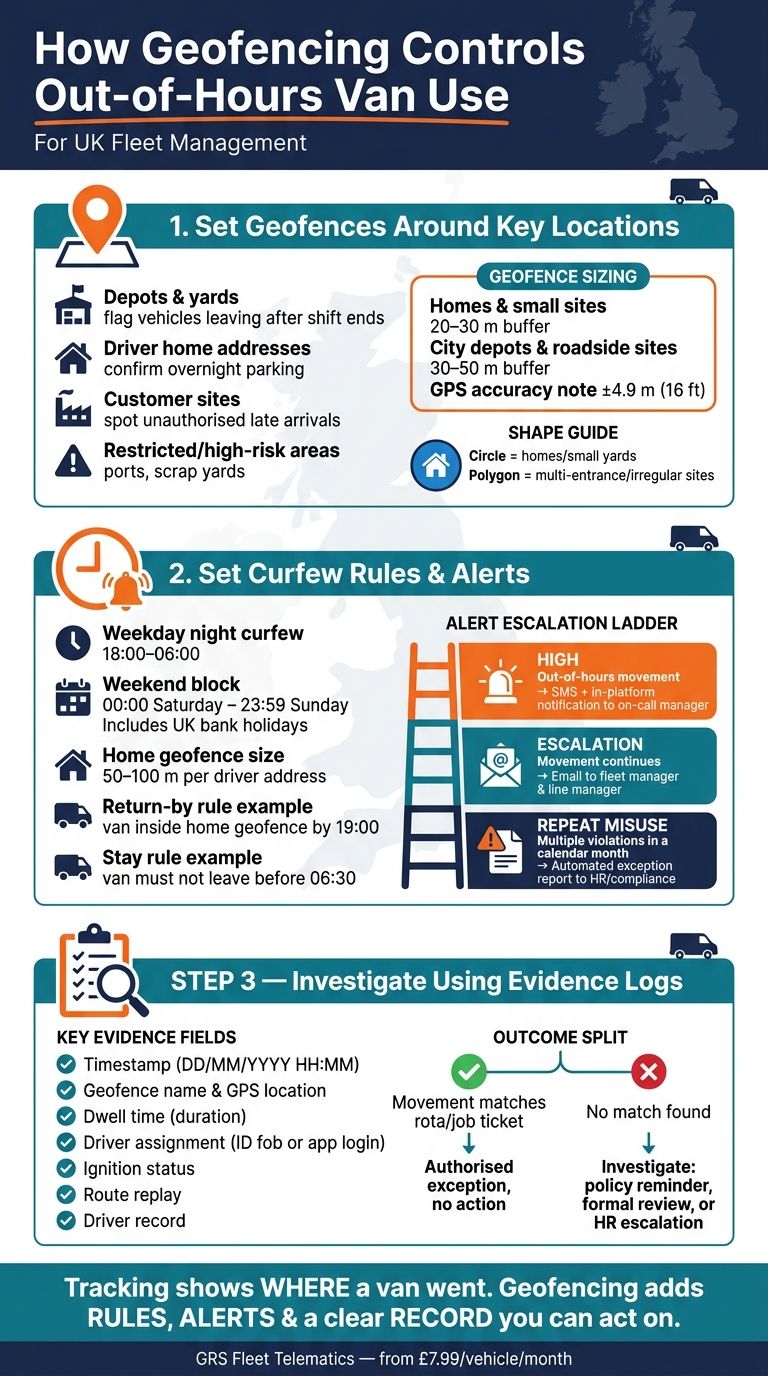
How Geofencing Controls Out-of-Hours Van Use: 3-Step Process
Step 1: Set geofences around the locations that matter
Before you turn alerts on, set geofences only where a crossing gives you useful control. Start with the locations that matter most: depots, homes, and high-risk sites.
Choose the right van tracking solutions for your zones
Focus on five location types that cover the main out-of-hours risks:
- Depots and yards: flag any vehicle leaving after the shift ends
- Driver home addresses: confirm overnight parking and catch late-night movement
- Customer sites: spot unauthorised late arrivals where fixed contract hours apply
- Restricted or high-risk areas: ports, scrap yards, and sites linked to theft or illegal tipping, where after-hours entry can point to serious misuse
Cover every entrance. A missed side gate creates a blind spot.
Once you’ve picked the right sites, match the fence shape to the boundary.
Use circles for small, simple sites. Use polygons for irregular sites or places with more than one entrance.
| Shape | Best for | Main advantage |
|---|---|---|
| Circle | Driver homes, small yards, compact depots | Fast to create, simple to manage |
| Polygon | Industrial estates and multi-entrance sites, irregular yards | Matches real boundaries, cuts false alerts |
Size each geofence to cut false alerts
Now make each boundary wide enough to avoid false alerts.
Fleet-grade GPS is accurate to around 4.9 metres (16 feet), but that can slip in dense urban areas or near tall buildings. If a geofence is too tight, GPS drift can trigger alerts even when the van hasn’t left. That’s how you end up with false overnight departure alerts.
A good starting point is to place the boundary 20–30 metres beyond the parking area for homes and small sites. For city depots or roadside sites, use 30–50 metres. Then review the first week’s alerts and adjust the boundary if needed.
Step 2: Set curfew rules, home parking checks and alerts
Once your geofences are set, the next job is simple: decide when a van should not move, where it should be overnight, and who gets told if something goes wrong.
Set curfew windows for nights, weekends and bank holidays
Set a weekday night curfew from 18:00 to 06:00. If the ignition turns on, the van moves, or it crosses a boundary during that window, trigger an out-of-hours alert. For weekends, use a full restriction from 00:00 Saturday to 23:59 Sunday, and include recognised UK bank holidays.
If your fleet includes different job types, don't use one blanket rule for everyone. Use role-based curfews instead. For example, a standard delivery van can follow a strict 18:00–06:00 curfew, while an emergency call-out van can have a looser setting that allows travel during approved call-out periods.
That keeps alerts useful. It also cuts the noise for drivers who are working out of hours for a valid reason.
Set alerts for both ignition on and movement during curfew periods. That way, you catch vans that are started and shifted a short distance, not only those driven away from site.
If a van stays with a driver overnight, add a separate home-location check as well.
Set up home parking checks
For drivers who take vans home, create a van-specific geofence for each approved overnight location. Use the driver's full UK address and place a 50–100 metre geofence around the approved parking spot. Give each fence a clear name, such as "Home – Van 12 – J Smith", so it's easy to spot in reports and audits.
Then add two automated checks:
- A return-by rule, such as: the van must be inside the home geofence by 19:00
- A stay rule, such as: the van must not leave before 06:30 on the next working day unless there is an approved override
If either rule is broken, the system should fire an alert straight away. This helps flag overnight breaches and private use that hasn't been approved.
Send alerts to the right managers straight away
Send the first alert by SMS and in-platform notification to the on-call fleet or operations manager. Each alert should include the vehicle registration, driver identity if linked through a driver ID, the geofence name, the event type, and the exact date and time in UK format, such as 17/07/2026, 22:14.
If out-of-hours movement carries on, escalate it by email to the fleet manager and line manager, with the full event summary attached. For repeat misuse, set a monthly exception report to go automatically to HR or compliance. That keeps day-to-day alerts away from senior staff, while helping the right people act fast.
That also gives managers a clear trail to review in Step 3.
| Alert level | Trigger | Channel |
|---|---|---|
| High | Out-of-hours movement between 18:00–06:00, at weekends or on bank holidays | SMS + in-platform notification to on-call manager |
| Escalation | Out-of-hours movement continues | Email + platform alert to fleet manager and line manager |
| Repeat misuse | Multiple curfew violations within a calendar month | Automated exception report to HR or compliance |
Step 3: Use evidence logs to investigate and follow up
Once an alert fires, match it against rota, job-ticket and call-out records to check whether the movement was approved. Start with the alert timestamp, then trace it back to the rota and job log.
Review entry, exit and movement records
Begin by filtering telematics reports by vehicle registration, date range and geofence name. Use the UK date format (DD/MM/YYYY) and 24-hour time so the report lines up with HR and rota systems. You’ll then have a timestamped list of entry and exit events.
For example, you might review one week for a single depot and check whether the alert lines up with the driver’s rota.
Then compare each movement with the driver’s rota and the approved call-out log. If nothing matches, that’s the gap to look into.
Tell apart authorised exceptions from misuse
Evidence logs make this much easier. Approved use should line up with a job ticket, customer address and return to the approved home geofence. Misuse won’t.
If theft is suspected, look for sudden curfew movements, unusual routes or tracker disconnections. The logs help separate valid exceptions from unexplained use in a clear, objective way. That means managers can have fair conversations with drivers based on map replays and timestamped records, not guesswork.
It also helps protect drivers who followed the rules, while giving HR or compliance a solid audit trail if a formal process goes ahead.
Quick-reference tables for investigations
Use these tables to keep follow-up consistent across drivers and locations.
Table 1: Geofence rule types and follow-up actions
| Geofence Rule Type | What It Detects | Usual Follow-Up Action |
|---|---|---|
| Depot curfew | Van exiting the yard during restricted hours, at weekends or on bank holidays | Cross-reference with emergency call-out logs or approved overtime; contact the driver or duty manager if no justification exists |
| Home parking | Van leaving a driver's registered home address during non-work hours, or failing to arrive by the agreed return time | Verify whether the driver had an approved late job or was directed to an alternative site; unexplained deviations trigger a policy reminder or formal review |
| Restricted zone | Entry into high-theft areas or company-prohibited sites | Immediate contact with the driver to establish the reason; review route planning or training if the visit was unauthorised |
Table 2: Core evidence fields and their investigative value
| Evidence Field | How It Helps an Investigation |
|---|---|
| Timestamp (DD/MM/YYYY HH:MM) | Aligns the event precisely with shift rosters and call-out logs to confirm whether movement occurred inside or outside scheduled work |
| Geofence name and GPS location | Shows exactly which depot, home address or restricted area was involved, making it easier to see whether a trip was to a valid customer site or a personal destination |
| Dwell time (duration) | Distinguishes a short refuelling stop from a three-hour stay at a leisure venue - a key factor in assessing personal use |
| Driver assignment | Links the event to a specific individual via ID fob or app login, ensuring accountability even in shared-vehicle fleets |
| Ignition status | Confirms whether the engine was running; helps separate engine-on movement from a parked or tampered vehicle |
Using both tables helps keep decisions consistent and based on evidence.
Conclusion: Apply geofencing to tighten control of van use
Once the logs are in place, the last job is simple: turn alerts into steady control.
Geofencing does its job when curfews, home parking checks and location fences are used the same way every time. Real-time alerts give managers the chance to act at once, then pass repeat breaches to fleet leadership or HR when needed.
Those alerts also need proof behind them. Evidence logs make follow-up easier to defend because they show when, where and how the van moved. That helps protect drivers who follow the rules and backs up action when misuse happens.
A telematics system that brings these functions into one place makes the whole process easier to run. GRS Fleet Telematics provides van tracking, geofencing and evidence logs from £7.99 per vehicle per month, with dual-tracker technology and immobilisation.
Geofencing only works when clear rules, fast alerts and steady follow-up are enforced together.
FAQs
How do I choose the right geofence size?
Choose a geofence size that gives you a good balance between precision and normal GPS drift. For standard monitoring, a 50 to 100 metre radius is a solid starting point. It gives enough room for small location shifts and helps cut down on false alerts.
If the site has an irregular layout or sits near a busy road, use a polygon instead of a circle. That way, you can match the property line more closely. Keep any buffer as small as it needs to be.
What should happen after an out-of-hours alert?
First, contact the driver at once to check what’s happening. If the vehicle has been stolen, use the system’s real-time location data and historical records to help the police track it and support recovery.
GRS Fleet Telematics can provide precise evidence logs for follow-up, security management, and insurance claims. It also helps to have clear response protocols in place before anything goes wrong.
Can geofencing work for drivers who take vans home?
Yes. Geofencing can help you manage drivers who take vans home by placing a virtual boundary around a home address or an approved overnight parking spot.
If the van moves outside set working hours, such as overnight or at weekends, you get an instant alert. That makes it easier to tell the difference between approved parking and unauthorised use, and it gives you an evidence log for any follow-up.